
Introduction
This manual is designed to help you quickly and confidently learn Localization for Ireland for Dynamics 365 Business Central, ensuring a smooth start for your or your Customer’s organization within the Irish regulatory environment. It covers the information from the Localization for Ireland license activation to the individual functionalities available within the extension. We hope it serves you well in using our extension!
License Activation & User Assignment
Upon installation of the Localization for Ireland extension, it is required to accept the associate End User License Agreement (EULA), validate the license for the Microsoft Tenant ID and assign the users to access the application.
- Go to “Companial Licenses” page.

- Click on “Validate License” action.
- “End User Agreement License” window will pop up. Review the conditions and mark “I accept the terms and conditions” and Click OK.
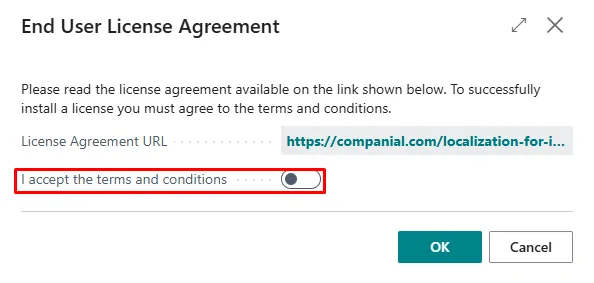
- The following record will be created in “Companial Licenses” page.

- Click on “User Assignment” action

- “App User Assignment” page will pop up
- Select the Users that you want to include in the license and mark “License Enabled”

- The user will be enabled

- Once users are assigned, they will have access to the extension functionalities.
Permission Sets
The system contains one permission set that grants access to all Irish functionality:
EXW IE All
- Caption: All permissions
- Access Level: Internal
To Assign: Navigate to Users → Select user → User Permission Sets → Add EXW IE All
Initial Setup
Before using the Localization for Ireland functionality, complete the following setup steps.
VAT Report Setup
On VAT report setup, following fields must be configured:
- Vat return No. Series: Specifies the number that will be used for VAT return
- Vat return Period No. Series: Specifies the number that will be used for VAT return Period
- Report Version: Specifies the VAT report version that is used for the VAT reporting
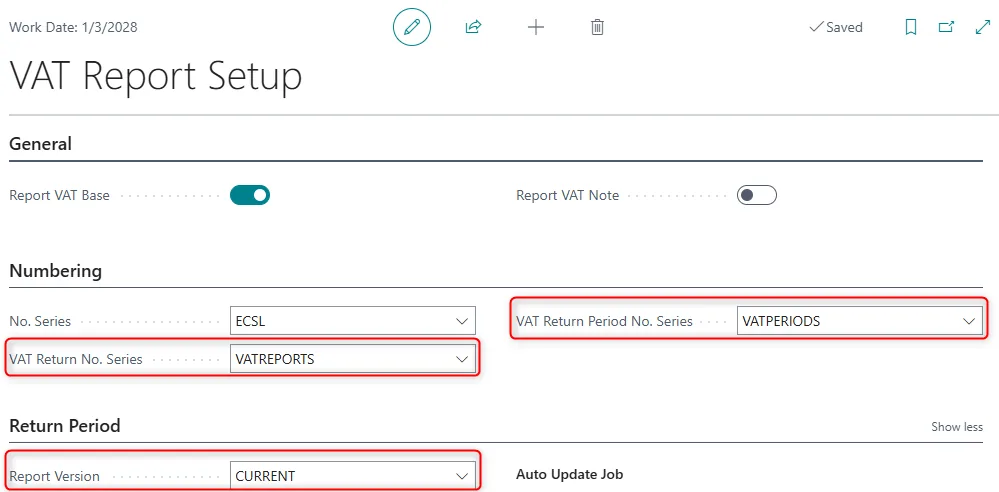
VAT Setup
- Navigate to VAT Setup (search for "VAT Setup")
Locate the VAT3 Return FastTab

Configure the following fields:
Field |
Description |
Options |
Mandatory VAT3 Export |
If enabled, users cannot mark VAT returns as submitted until the VAT3 XML file has been generated |
Yes/No |
VAT3 Return Language |
Language for VAT3 XML file |
English (E) / Irish (I) |
VAT3 Filing Frequency |
How often VAT3 returns are submitted |
Bi-Monthly / Repayment Only / Other / Four Monthly / Bi-Annual |
Recommendation: Enable Mandatory VAT3 Export to ensure all returns are properly exported before submission.
VAT Report Configuration
- Navigate to VAT Report Configuration (search for "VAT Report Configuration")
Locate or create the configuration for VAT Report Type = VAT Return
Configure the following fields:
Field |
Value |
Description |
VAT Report Type |
VAT Return |
Fixed value |
VAT Report Version |
Current |
Description that identifies the report version for Ireland |
Suggested Lines Codeunit ID |
745 |
Standard BC codeunit |
Content Codeunit ID |
73011579 |
Ireland extension - generates VAT3 XML |
Validate Codeunit ID |
73011578 |
Ireland extension - validates VAT3 |
Country/Region Setup
The Ireland Localization allows you to customize the name of the "Post Code" field based on country-specific terminology.
- Navigate to Countries/Regions (search for "Countries/Regions")
Select a country (e.g., IE - Ireland)
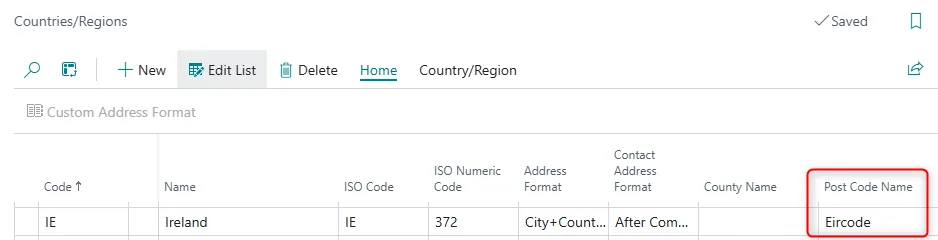
In the Post Code Name field, enter the local term:
- Ireland: Eircode
- Other countries: Leave blank to use default "Post Code"
This setting automatically changes the field caption across all address-related pages and reports.
Note: Similar behaviour as “County Name” field
VAT3 Return Configuration
VAT Statement Setup
The VAT Statement must be structured according to Irish VAT3 Return requirements. The system requires exactly 7 box numbers:
Box No. |
Description |
VAT Type |
Usage |
T1 |
VAT on Sales |
Sales |
Total VAT collected on domestic sales |
T2 |
VAT on Purchases |
Purchase |
Total VAT paid on domestic purchases |
E1 |
Goods to other EU countries |
Sales |
Base amount (not VAT) for intra-EU goods sales |
E2 |
Goods from other EU countries |
Purchase |
Base amount for intra-EU goods purchases |
ES1 |
Services to other EU countries |
Sales |
Base amount for intra-EU services sales |
ES2 |
Services from other EU countries |
Purchase |
Base amount for intra-EU services purchases |
PA1 |
Postponed Accounting |
Sales |
VAT on reverse charge transactions |
Configuring VAT Statement
- Navigate to VAT Statements (search for "VAT Statements")
Create or modify your VAT Statement Template for Ireland
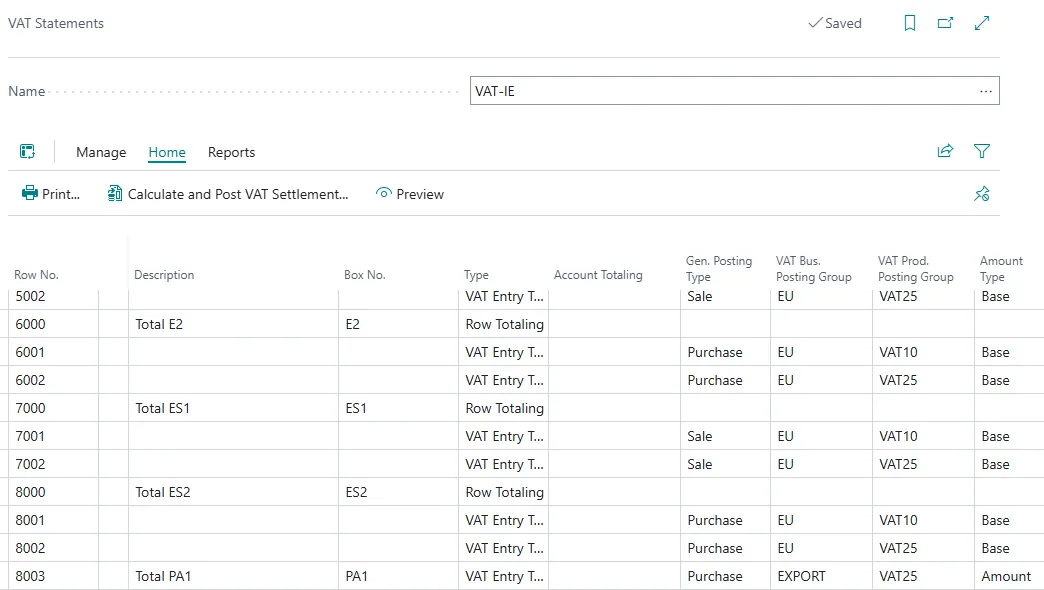
Ensure each row includes:
- Row No. - Sequential number
- Description - Descriptive text
- Type - VAT Entry Totalling
- VAT Bus. Posting Group - Appropriate group (Domestic, EU)
- VAT Prod. Posting Group - Appropriate group (Goods, Services)
- Row Totalling - Formula for calculation
- Amount Type - Base or Amount
- Box No. - One of: T1, T2, E1, E2, ES1, ES2, PA1
Validation: When generating a VAT3 Return, the system validates that all 7 box numbers exist in your VAT Statement.
VAT3 Return Mapping
The VAT3 Return Mapping table links VAT Statement box numbers to XML elements in the VAT3 Return file.
Auto-Fill Mapping (Recommended)
- Navigate to VAT Return page
Click Actions → VAT3 Return Mapping
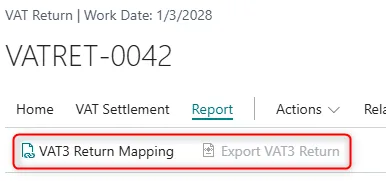
On the VAT3 Return Mapping page, click Auto-fill Mapping
The system creates default mappings:
VAT Statement Box |
→ |
XML Element |
T1 |
→ |
Sales |
T2 |
→ |
Purchases |
E1 |
→ |
Goods To |
E2 |
→ |
Goods From |
ES1 |
→ |
Services To |
ES2 |
→ |
Services From |
PA1 |
→ |
Postponed Accounting |
Important: Mapping must be completed before generating any VAT3 Return XML files.
VAT3 Return Process
Creating VAT Return Periods
VAT Return Periods define the time frames for VAT reporting.
- Navigate to VAT Return Periods (search for "VAT Return Periods")

Click New and enter:
- Start Date - First day of VAT period (e.g., 01/01/2026)
- End Date - Last day of VAT period (e.g., 31/01/2026)
- Due Date - Submission deadline (e.g., 28/02/2026)
Click Create VAT Return to generate a new VAT Return
Standard VAT Return
Standard VAT Returns are the normal, periodic submissions to Irish Revenue.
Step 1: Create VAT Return
- From VAT Return Periods, click Create VAT Return (Also it can be created from VAT Returns list, “New” action)
A new VAT Return card opens
Select VAT Report Version (the one from VAT Report Configuration)
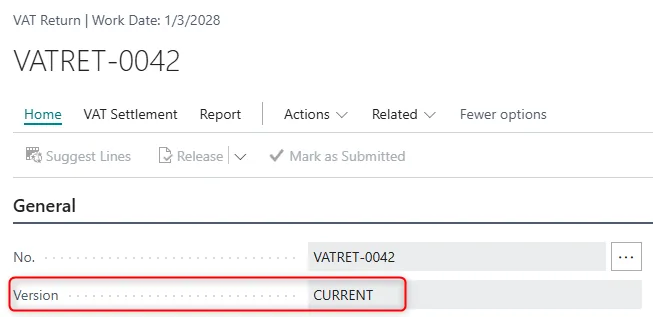
Specify Return Period (Start Date, End Date)
Period and Date fields will be automatically filled in based on the Return Period selected
VAT Report Type defaults to "Standard" (correct for initial returns)
Filing Frequency is automatically set from VAT Setup (can be changed if needed)
Step 2: Generate VAT Return Lines
- On the VAT Return card, click Actions → Suggest Lines
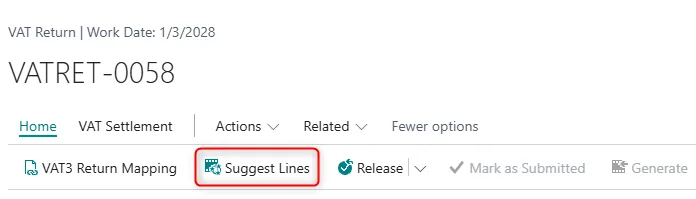
On the request page, configure:
- Include VAT Entries:
- Open - Entries not yet included in a settlement
- Closed - Entries already settled
- Open and Closed - All entries (most common)
- Include VAT Entries:
- Within Period - Only entries in this period
- Before and Within Period - Include prior period entries (if needed)
- VAT Statement Template - Select your Ireland template
- VAT Statement Name - Select your Ireland statement name
Click OK. The system populates the Report Lines FastTab with VAT amounts for each box.
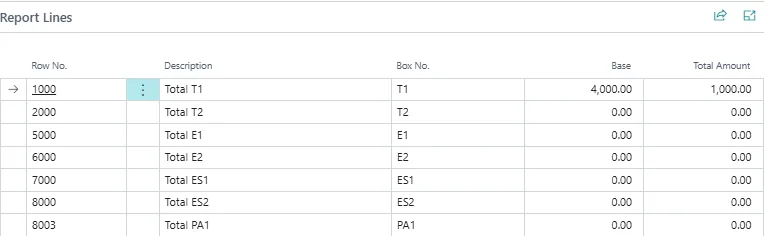
Step 3: Review Report Lines
On the Report Lines FastTab, verify:
- Box No. - Should show T1, T2, E1, E2, ES1, ES2, PA1
- Description - Descriptive text from VAT Statement
- Base - Transaction base amounts
- Amount - VAT amounts
Step 4: Unusual Expenditure (if applicable)
If your business has unusual or exceptional expenditure that needs to be reported, proceed as follows:
- On the Unusual Expenditure FastTab:
- Unusual Expenditure - Set to Yes
- Unusual Expenditure Amount - Enter the amount
- Unusual Expenditure Details - Enter description (max 50 characters)

Step 5: Release VAT Return
- Click Actions → Release
The system validates:
- VAT return has lines
- No duplicate standard returns for the same period
- Start date is before end date
If validation passes, the status changes to Released.
Corrective VAT Return
Corrective VAT Returns replace a previously submitted Standard or Corrective return when errors are discovered.
Key Characteristics
- Replaces the original return completely
- Links to Original Report No.
- Updates the VAT3 Return No. field on affected VAT entries
- Only one corrective return allowed per original return
- Cannot correct a Supplementary return
Process
- Create a new VAT Return (from VAT Return Period or manually)
On the General FastTab:
- VAT Report Type - Select Corrective
- Original Report No. - Select the Standard or Corrective return being corrected
Click Suggest Lines
The system loads all the VAT entries from the Return Period selected
Complete Release → Generate → Submit workflow
Effect: When the corrective return is exported, VAT entries are updated to reference the new return number.
Supplementary VAT Return
Supplementary VAT Returns report additional transactions that were omitted from a Standard return.
Key Characteristics
- Adds to (does not replace) the original return
- Links to Original Report No.
- Uses VAT3 Suppl. Ret. No. field on VAT entries (separate from standard returns)
- Multiple supplementary returns allowed for the same original return
- Automatically filters out entries already included in other returns
Process
- Create a new VAT Return
On the General FastTab:
- VAT Report Type - Select Supplementary
- Original Report No. - Select the Standard return being supplemented
Click Suggest Lines
The system filters VAT entries to exclude:
- Entries already in the original Standard return
- Entries already in other Supplementary returns for this period
Complete Release → Generate → Submit workflow
Effect: VAT entries are marked with the Supplementary Return No., maintaining a separate audit trail.
Generating VAT3 XML File
Once a VAT Return is released, generate the XML file for submission to Irish Revenue.
Process
- On the released VAT Return, click Home → Generate
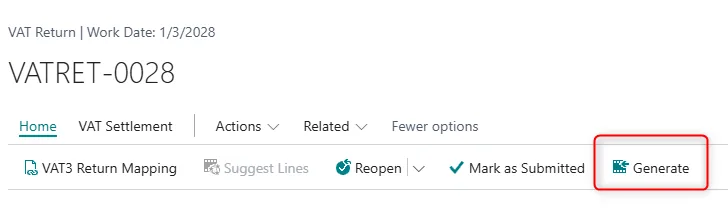
The system:
- Validates VAT3 Return Mapping is configured
- Exports VAT3 Return XML file
- Saves the file to your Downloads folder (default name: VAT3 Return.xml)
- Attaches the XML to the VAT Return as a Document Attachment

Note: Submitted VAT3 Return attachments cannot be deleted
- Marks VAT entries with the VAT Return No. and Supplementary VAT Return if applies.
XML File Contents
The VAT3 Return XML includes:
- Company Name and Registration Number (from Company Information)
- VAT Return Period (Start Date, End Date)
- Currency (default: E for Euro)
- VAT amounts for all 7 boxes (T1, T2, E1, E2, ES1, ES2, PA1)
- Form Version (fixed at 1)
- Language (English or Irish, from VAT Setup)
- Filing Frequency (from VAT Setup)
- Unusual Expenditure details (if applicable)

Submitting VAT Returns
Mark as Submitted
After uploading the VAT3 Return XML to Irish Revenue's ROS (Revenue Online Service):
- On the VAT Return card, click Actions → Mark as Submitted
Validation: If Mandatory VAT3 Export is enabled in VAT Setup, the system blocks submission if no VAT3 XML has been generated
The status changes to Submitted
Important: In Ireland, submitted VAT Returns cannot be modified. If changes are needed, create a Corrective or Supplementary return.
Mark as Accepted
Once Irish Revenue confirms acceptance of the VAT3 Return:
- Click Actions → Mark as Accepted
The status changes to Accepted
VAT Settlement
After the VAT return is accepted, post the VAT settlement:
- Navigate to Calc. and Post VAT Settlement (search for "Calc. and Post VAT Settlement")
Enter the appropriate date range and posting date
Click OK to post the settlement
This creates balancing entries in the General Ledger and closes the VAT entries for the period.
VAT Entries
The VAT Entries page has been enhanced to show which VAT returns included each entry.
Additional Fields
- Navigate to VAT Entries (search for "VAT Entries")
Two new columns are visible:
- VAT3 Return No. - Shows the Standard or Corrective return that included this entry
- VAT3 Suppl. Ret. No. - Shows the Supplementary return that included this entry
Audit Trail
These fields provide complete traceability:
- Identify which entries were included in which returns
- Distinguish between standard and supplementary reporting
- Support audit requests for entry-level details
Example:
Entry #12345:
- VAT3 Return No. = VATR-001 (Standard return for Jan-Feb 2026)
- VAT3 Suppl. Ret. No. = (blank)
Entry #12789:
- VAT3 Return No. = VATR-001 (Standard return for Jan-Feb 2026)
- VAT3 Suppl. Ret. No. = VATR-005 (Supplementary for omitted entries)
VAT Reporting
VAT Audit Report
The VAT Audit Report exports data in CSV format for audit purposes. It provides three separate exports:
Accessing the Report
- Navigate to VAT Statements (search for "VAT Statements")
Click Reports → VAT Audit Report

Report Request Page:
- Data Set Selection (Checkboxes):
- Export Customers: Export the Customer master data table
- Export Open Payments: Export all customer open receivable entries (unpaid invoices showing as negative amounts)
- Export Late Invoicing: Export closed payment entries where the delay between payment posting and invoice posting exceeds the Late Invoice Delay threshold
- Export Vendors: Export the Vendor master data table
- Export VAT Entries: Export the VAT Entry table for the specified period
- Configuration Parameters:
- Late Invoice Delay (Days): Threshold in days for identifying late invoicing scenarios (default: 14 days)
- Example: If set to 14 days, the report identifies closed payments where the invoice was posted more than 14 days after the payment date
- Purpose: Helps detect cash-basis accounting irregularities or delayed invoicing practices
- File Name Configuration: Default filenames are automatically assigned:
- Customer.CSV
- OpenPay.CSV
- LateInv.CSV
- Vendor.CSV
- VATentry.CSV
- Date Filters:
- VAT Entry dataset: Explicit date range filters available ("VAT Reporting Date" and "Posting Date")
- Other datasets (Customer, Vendor, Ledger Entries): Standard table filters available but no specific date range filter on request page

- User Feedback. Progress windows display during export for each dataset:
- "Exporting Customers..."
- "Exporting Open Payments..."
- "Exporting Late Invoicing Entries..."
- "Exporting Vendors..."
- "Exporting VAT Entries..."
- Current record being processed is displayed
Exported Data Sets
Note: Only one table is exported (the latest from the list of checks on the request page) following the GB Audit Report behavior.
- Customer Master Data:
Field |
Type |
Description |
Customer No. |
Text |
Customer number |
Name |
Text |
Customer name |
Address |
Text |
Address line 1 |
Address 2 |
Text |
Address line 2 |
City |
Text |
City |
County |
Text |
County (Irish localization field) |
Post Code |
Text |
Postal code/Eircode |
- Open Payments (Outstanding Receivables):
Field |
Type |
Description |
Entry No. |
Integer |
Ledger entry number |
Customer No. |
Text |
Customer number |
Description |
Text |
Entry description |
Document Type |
Text |
Document type (formatted as text) |
Document No. |
Text |
Document number |
Posting Date |
Date |
Entry posting date |
Original Amount |
Decimal |
Original amount in LCY (CalcField) |
Note: Includes open customer ledger entries with negative amounts (unpaid invoices/receivables from customer perspective)
- Late Invoicing:
Field |
Type |
Description |
Entry No. |
Integer |
Payment entry number |
Customer No. |
Text |
Customer number |
Description |
Text |
Entry description |
Document Type |
Text |
Document type (formatted as text) |
Document No. |
Text |
Document number |
Payment Posting Date |
Text |
Posting date of the payment entry |
Invoice Posting Dates |
Text |
Semicolon-delimited list of invoice posting dates that exceeded the threshold (max 250 characters) |
Original Amount |
Decimal |
Original amount in LCY (CalcField) |
Note: Identifies closed payment entries where invoicing occurred more than [Late Invoice Delay] days after payment, searching both forward and reverse application relationships
- Vendor Master Data:
Field |
Type |
Description |
Vendor No. |
Text |
Vendor number |
Name |
Text |
Vendor name |
Address |
Text |
Address line 1 |
Address 2 |
Text |
Address line 2 |
City |
Text |
City |
County |
Text |
County |
Post Code |
Text |
Postal code |
- VAT Entries:
Field |
Type |
Description |
Posting Date |
Date |
Transaction posting date |
VAT Reporting Date |
Date |
VAT reporting date (may differ from posting date per EU rules) |
Document No. |
Text |
Internal document number |
Document Type |
Text |
Document type (formatted as text) |
Base Amount |
Decimal |
VAT base amount |
VAT Amount |
Decimal |
VAT amount |
VAT Calculation Type |
Text |
Normal VAT, Reverse Charge, etc. |
Type |
Text |
Sale or Purchase |
Bill-to/Pay-to No. |
Text |
Customer/Vendor number |
External Document No. |
Text |
Vendor invoice number or external reference |
Entry No. |
Integer |
VAT entry number |
VAT Entry Exception Report
The VAT Entry Exception Report identifies VAT entries with potential errors or unusual characteristics.
Accessing the Report
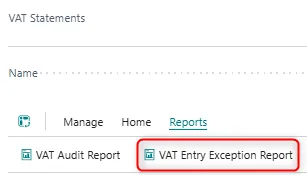
- Navigate to VAT Statements
Click Reports → VAT Entry Exception Report
Report Request Page
- Validation Checks (Checkboxes):
- Check VAT Base Discount: Identifies entries where the VAT Base Discount % field exceeds maximum base discount percentage
- Check Manual VAT Difference: Flags manual VAT adjustments (VAT Difference field) above specified threshold
- Check VAT Calculation Types: Detects mismatches between VAT entry calculation type and VAT posting setup configuration
- Check VAT Rate: Identifies calculated VAT rate differences exceeding tolerance percentage
Note: At least one validation check must be enabled to run the report.
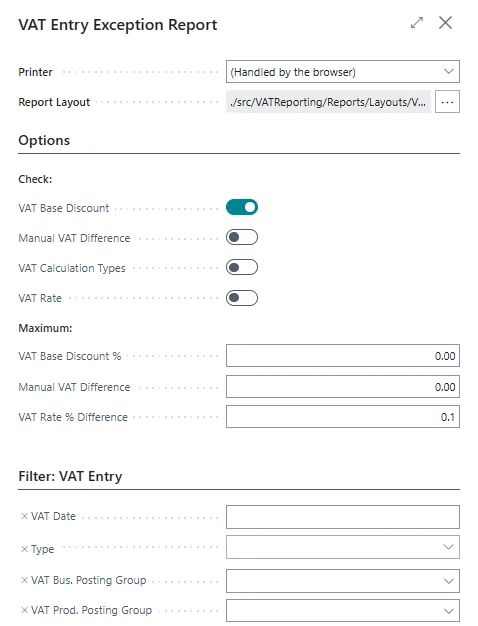
- Threshold Parameters:
- Maximum VAT Base Discount %: Upper limit for base discount (0-100%, e.g., 5%)
- Default: Initialized from General Ledger Setup "VAT Tolerance %" field
- Maximum Manual VAT Difference: Absolute amount threshold for manual adjustments (e.g., 100)
- Default: Initialized from General Ledger Setup "Max. VAT Difference Allowed" field
- Maximum VAT Rate % Difference: Tolerance for calculated VAT rate variations (0-100%, e.g., 0.1%)
- Default: 0.1% if not previously set
- Standard Filters:
- VAT Reporting Date range (recommended for performance)
- Type (Purchase/Sale)
- VAT Business Posting Group
- VAT Product Posting Group
- Other standard VAT Entry filters
- Exception Details (per entry):
- Entry No.: VAT Entry identifier
- VAT Reporting Date: Date used for VAT reporting
- Document Type: Invoice, Credit Memo, etc.
- Document No.: Internal document number
- External Document No.: Vendor/customer document reference
- VAT Calculation Type: Normal VAT, Reverse Charge VAT, Full VAT, etc.
- VAT Business/Product Posting Groups: Posting group combination
- Base: VAT base amount
- VAT Base Discount %: Discount percentage applied to base
- Amount: VAT amount
- VAT Difference: Manual VAT adjustment amount
- ErrorText: Comma-separated description of all validation failures for this entry
- Grouping and Totals:
- Entries grouped by Type (Purchase/Sale)
- Subtotals per Type showing aggregate Base, Amount, and VAT Difference
- Group header displays: "Total for Type [Purchase/Sale]"
- Validation Logic
- VAT Base Discount Check:
- Compares the "VAT Base Discount %" field value from VAT Entry to the user-specified maximum threshold
- Flags entries where the field value exceeds the maximum percentage
- Helps identify unusual discount patterns that may require justification
- Error message format: "VAT Base Discount % > [threshold]"
- Manual VAT Difference Check:
- Compares the absolute value of the "VAT Difference" field from VAT Entry to the maximum threshold
- The VAT Difference field contains manual adjustments made during posting
- Flags entries where Abs(VAT Difference) > threshold
- Detects manual interventions that may need documentation for audit purposes
- Error message format: "VAT Difference > [threshold]"
- VAT Calculation Type Check:
- Compares VAT Entry "VAT Calculation Type" to the expected type from VAT Posting Setup
- Retrieves expected type using VAT Bus. Posting Group + VAT Prod. Posting Group combination
- Flags mismatches that could indicate incorrect posting group selection or setup issues
- Special handling: If VAT Posting Setup combination doesn't exist, expected type = "Missing"
- Helps ensure consistency with configuration
- Error message format: "Setup VAT Calculation Type is [actual] compared to setup [expected]"
- VAT Rate Check:
- Calculates effective VAT rate from Base and Amount after applying base discount
Calculation steps:
- Adjust Base: Adjusted Base = Base × (1 - VAT Base Discount % / 100)
- Calculate Rate: Calculated Rate = (Amount / Adjusted Base) × 100
- Compares calculated rate to configured "VAT %" from VAT Posting Setup
- Flags differences exceeding tolerance threshold
- Special Handling:
- Reverse Charge VAT entries excluded from rate validation (0% VAT expected)
- Zero base detection: If Base = 0 but Amount <> 0, flags as exception
- Error message formats:
- "VAT % is [calculated] compared to setup [expected]" (rate mismatch)
- "Base is 0 and Amount is <> 0" (zero base exception)
- Data Sources
- VAT Entry: Transaction data containing posted VAT entries
- VAT Posting Setup: Reference configuration for expected VAT calculation types and rates
- General Ledger Setup: Source of default threshold values
Sales Documents
Posted Sales Invoice
Irish tax authorities require the customer's VAT Registration Number to be displayed on VAT invoices.
- Standard Sales - Invoice Report (Extended)
- New Data Column:
- Customer VAT Registration No.: Retrieved from Customer table
- Custom Layout:
- Layout Name: "Sales Invoice - VAT Spec (Word) IE"
- Format: Word (.docx)
- Display Location: Customer VAT registration number printed in customer information section.

Posted Sales Credit Memo
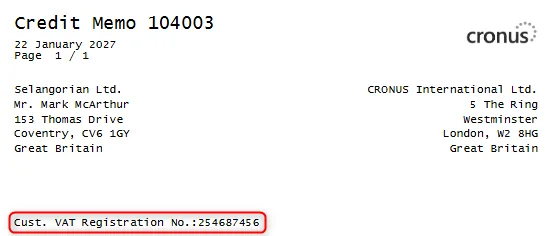
Similar to invoices, credit memos must display the customer's VAT Registration Number.
- Standard Credit Memos Report (Extended)
- New Data Column:
- Customer VAT Registration No.: Retrieved from Customer table
- Custom Layout:
- Layout Name: "Sales Credit Memo (Word) IE"
- Format: Word (.docx)
- Display Location: Customer VAT registration number printed in customer information section.
Report Selection
Irish localized layouts available in Report Selection for Sales Invoice and Credit Memo. Administrators can set these as default layouts for all sales documents.
Post Code Localization
The Ireland Localization includes a comprehensive Post Code Caption Class system that dynamically changes the "Post Code" field name based on the country.
How It Works
- Each Country/Region record can define a Post Code Name
- When that country is selected on an address, the field caption changes automatically
- Example: Ireland uses "Eircode" instead of "Post Code"
Affected Modules
The Post Code Caption Class applies to all those tables across all modules:
Foundation
- Company Information
- Standard Address
- Autocomplete Address
Sales
- Customer, Customer Bank Account, Customer Template
- Sales documents (Quote, Order, Invoice, Credit Memo, Return Order)
- Posted Sales documents (Shipment, Invoice, Credit Memo, Return Receipt)
- Archived Sales documents
- Ship-to Address
- Reminder/Fin. Charge documents
- All Sales Entity Buffers (API integration)
Purchases
- Vendor, Vendor Bank Account, Vendor Template
- Purchase documents (Quote, Order, Invoice, Credit Memo, Return Order)
- Posted Purchase documents (Receipt, Invoice, Credit Memo, Return Shipment)
- Archived Purchase documents
- Order Address, Remit Address
- All Purchase Entity Buffers
Services
- Service Item
- Service documents (Quote, Order, Invoice, Credit Memo)
- Posted Service documents
- Service Contracts (Active and Filed)
Projects
- Resource
- Job, Job Task
- Job Archive, Job Task Archive
Inventory/Manufacturing
- Location, Responsibility Centre
- Transfer documents (Header, Shipment, Receipt)
- Work Centre, Machine Centre
Human Resources
- Employee, Employee Template
- Alternative Address
- Union
CRM
- Contact
- Contact Alternative Address
Bank
- Bank Account
- Payment Export Data
Intercompany
- All IC Inbox/Outbox Sales and Purchase headers (10 tables)
Configuration Example
Country |
Post Code Name |
Result |
IE (Ireland) |
Eircode |
Field shows as "Eircode" |
US (United States) |
ZIP Code |
Field shows as "ZIP Code" |
DE (Germany) |
(blank) |
Field shows as "Post Code" |
User Experience
When entering a customer address:
- Select Country/Region Code = IE
The Post Code field automatically relabels to Eircode
Users see the familiar local terminology