News
Companial, Ciellos and Simplanova go further as one.
For years we have worked alongside you as three companies with one shared purpose: helping Microsoft Dynamics partners grow.
Discover new CompanialThursday, September 12, 2024
Reading time: 13 minutes
I get asked about device licenses in Business Central on a regular basis, and it’s true, there are quite a couple of BLOGs available out there, but they all cover only a part of the solution, I’ve read many of them multiple times to finally put the full picture together, and finally created a test tenant with one device license so I can see the whole thing work for myself. Once I felt that I had a good comprehensive solution in my mind about everything around the Device Licenses, and I’ve answered at least 50 partner questions around Device Licenses… I decided to put it all into this comprehensive BLOG covering everything that you need to know.
So, what are all the limitations placed on a device license?
Don’t stop reading here if you are not technical, we are still going to be discussing a lot of issues around the Device Licenses, but let’s have a look at what do we do to setup these Device Licenses. I said do not assign the licenses to any users, like you would with a normal license, so how do we assign the licenses?
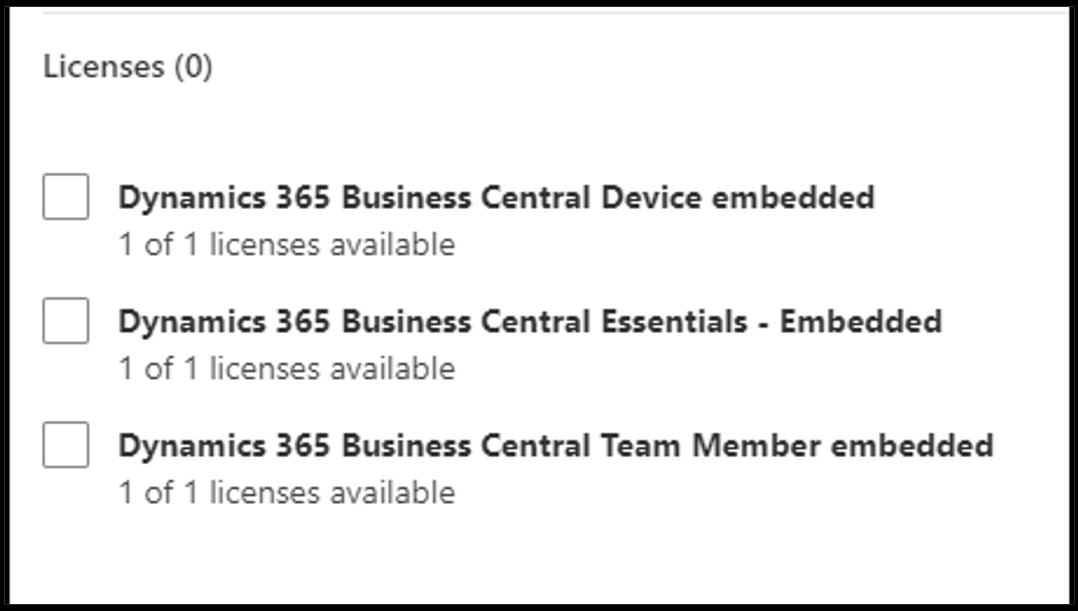
The short answer is you don’t, the licenses are just allocated against the tenant, and like I mentioned above, and Microsoft does in one of their pages, the licenses are considered concurrent. So, every time a device logs into Business Central, it consumes a Device License, until all devices are used up. Let’s set this up, so you can see how this is done, then we can discuss this further, because this does have implications.
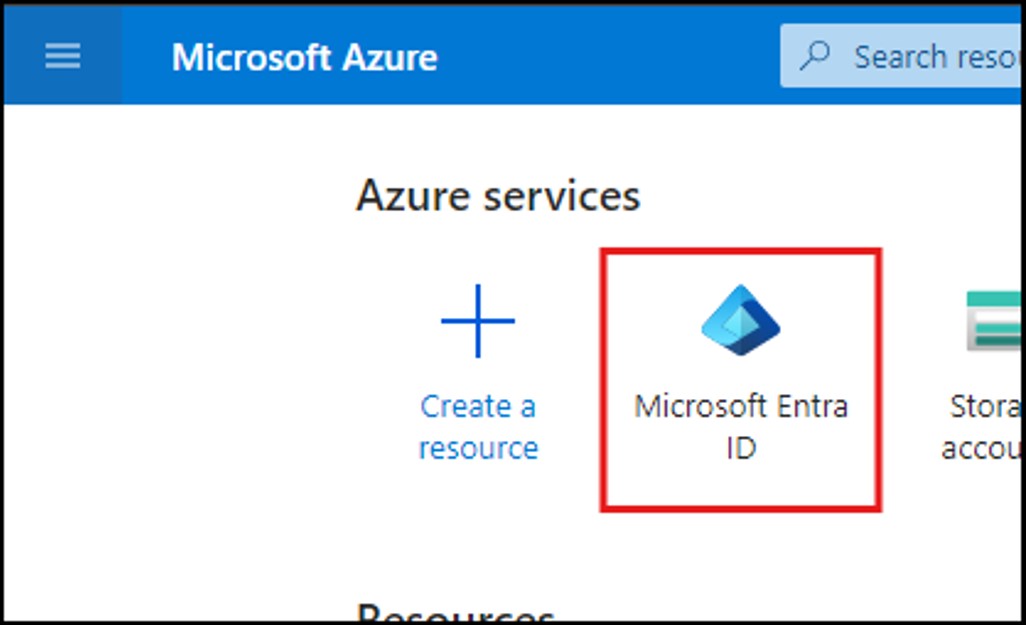
This setup you need to do in the Azure Portal, because we are going to create a Security Group, and I’m not sure if you can do this in admin.microsoft.com, but I know how to do it in portal.azure.com… So, log into portal.azure.com and go to Entra, let’s do this:
Image 2: In Portal.azure.com you need to open Microsoft Entra:
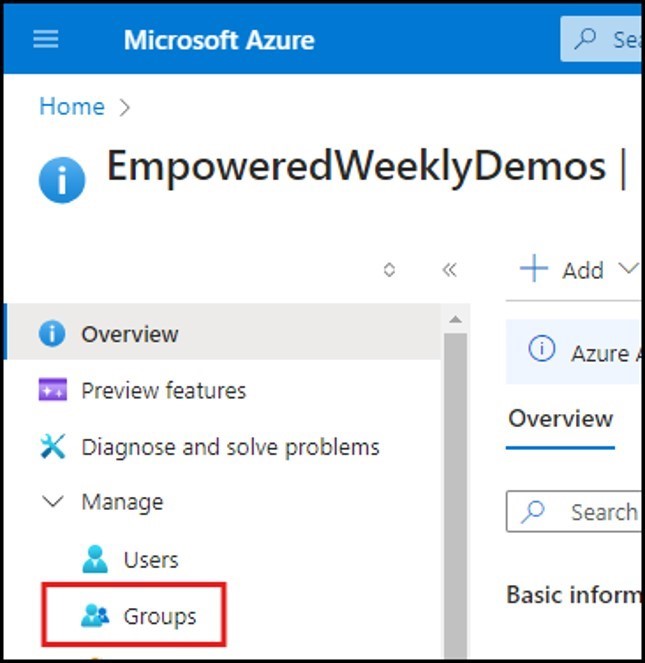
Image 3: In Microsoft Entra, open the Groups:
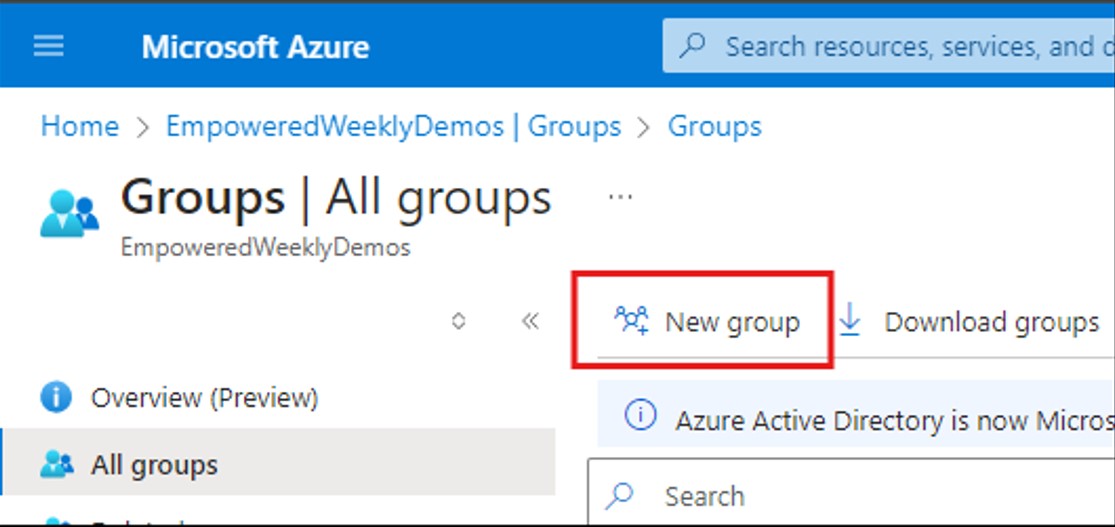
Image 4: Create a new Group, by clicking on the New Group Button:
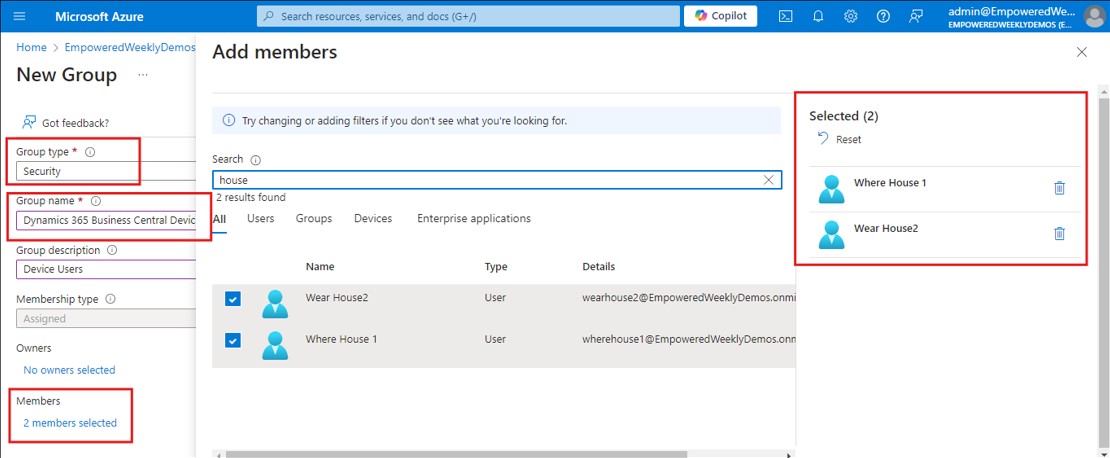
Image 5: Group Type – Security, give the group a name “Dynamics 365 Business Central Device Users”, and add the Device Users as members to the Group:
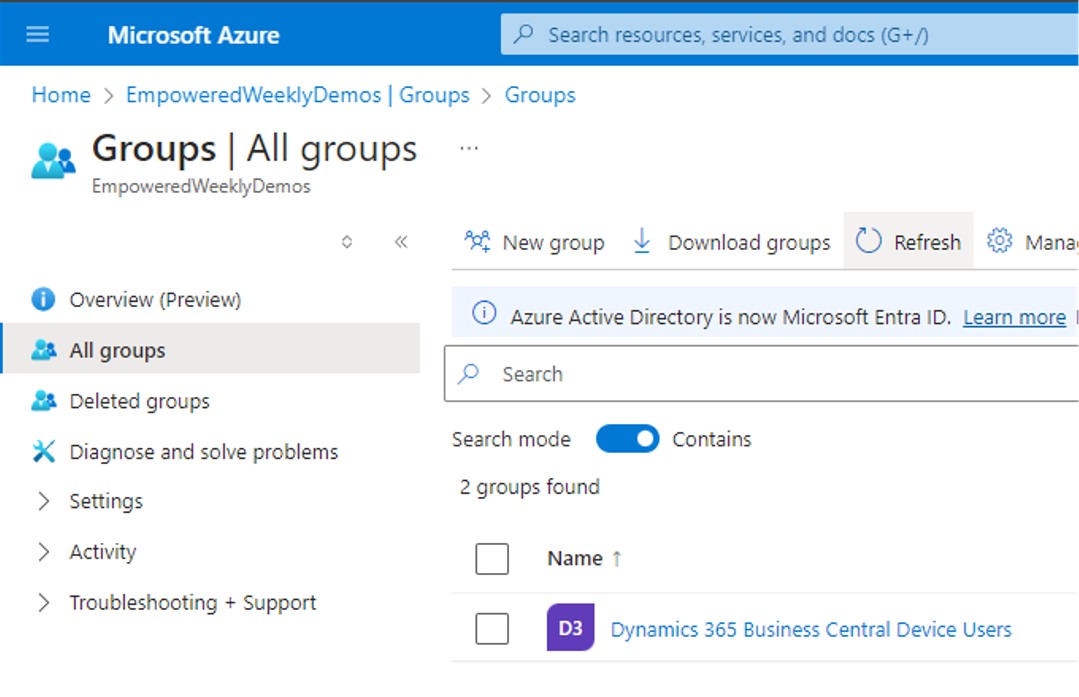
Let’s just stop here, I need to highlight, that the group needs to be called “Dynamics 365 Business Central Device Users” exactly as I have here, if you misspell the name, or put a space at the end or get the capital letters wrong, this group is not going to work. It needs to be spelt exactly as I have done here. Click on finish, and your Group is created as below:
Image 6: The Group you have now created:
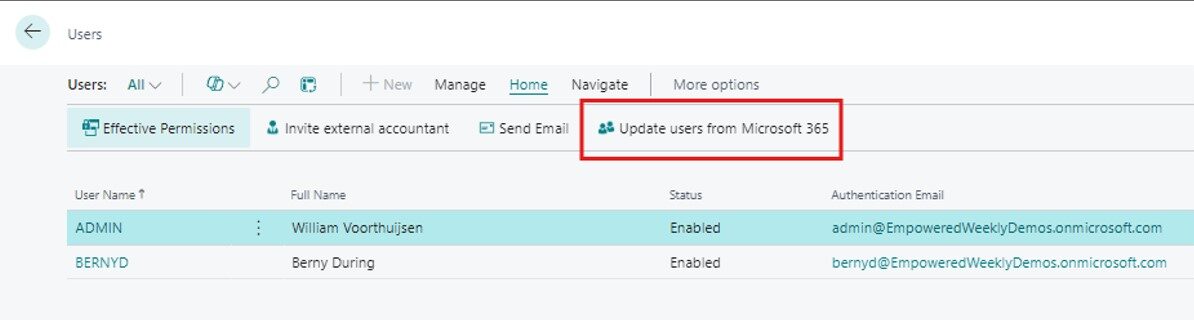
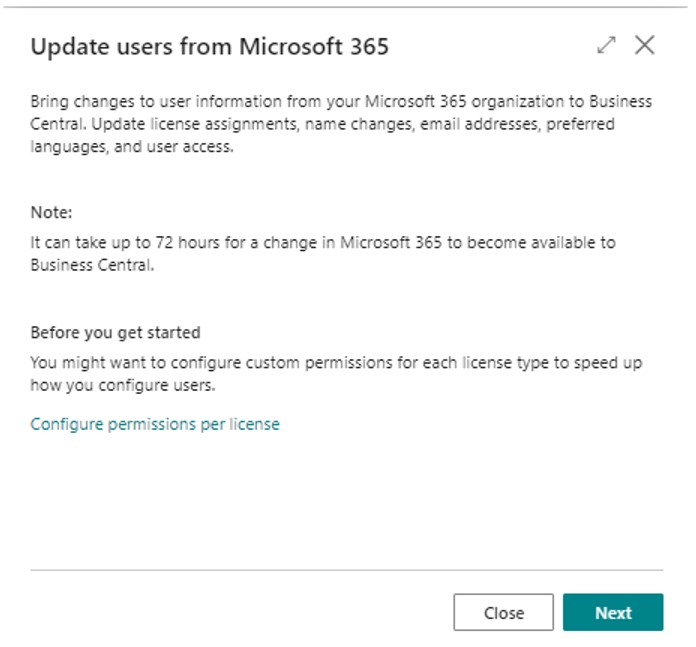
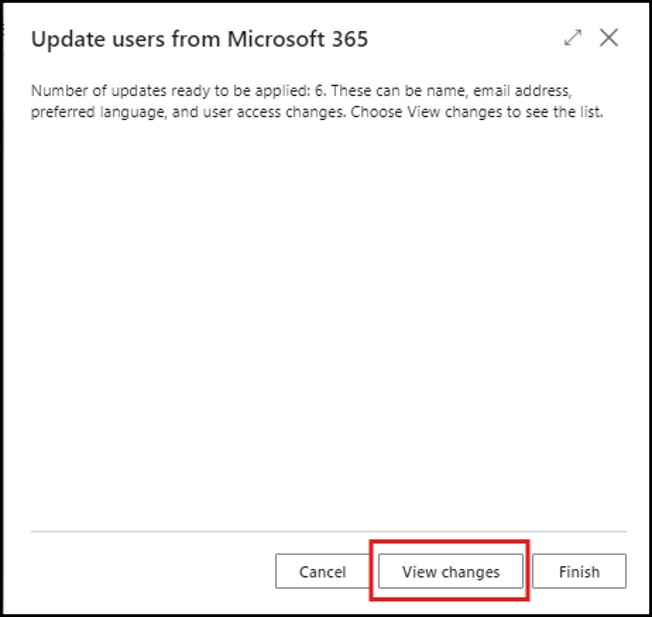
Now if you go back into Business Central, and you click on the Update users from Microsoft 365 button in the Users page, and follow the steps, it will bring the users across from the Group into Dynamics 365 Business Central. They are now just normal users, and you can assign permissions to these users as you would any other user. The only difference is that they don’t use the normal User license, they will use the Device Licenses assigned to the Tenant. Here are the final steps:
Image 7: Update the users from Microsoft 365 in the Users page:
Image 8: In the wizard, click Next on the first page that appears:
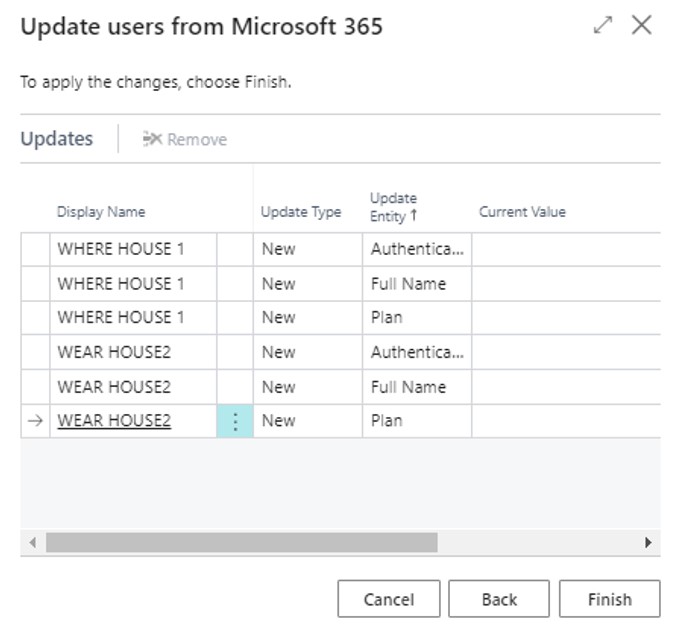
Image 9: You can click View changes if you want to see what users are going to be added in the next page:
Image 10: Once you have reviewed the changes, you can click on the Finish button:
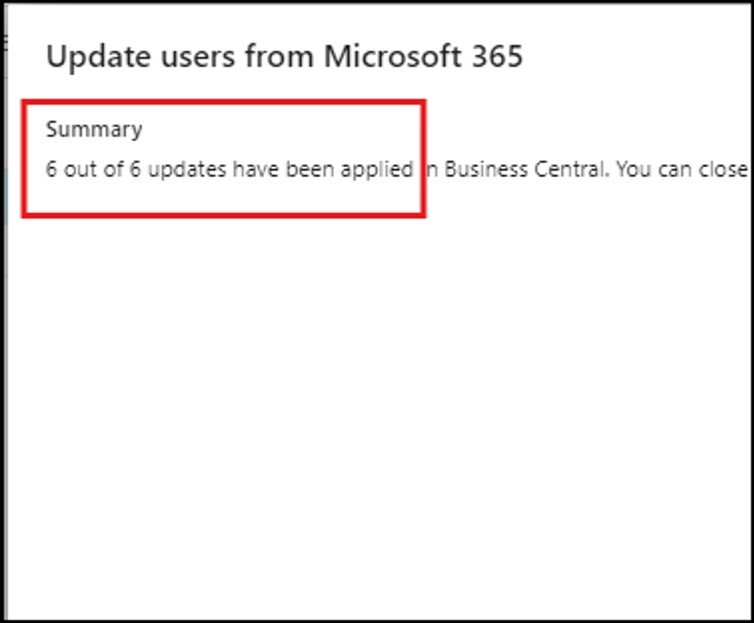
Image 11: Once the changes have been implemented, Business Central will show you that the changes are done:
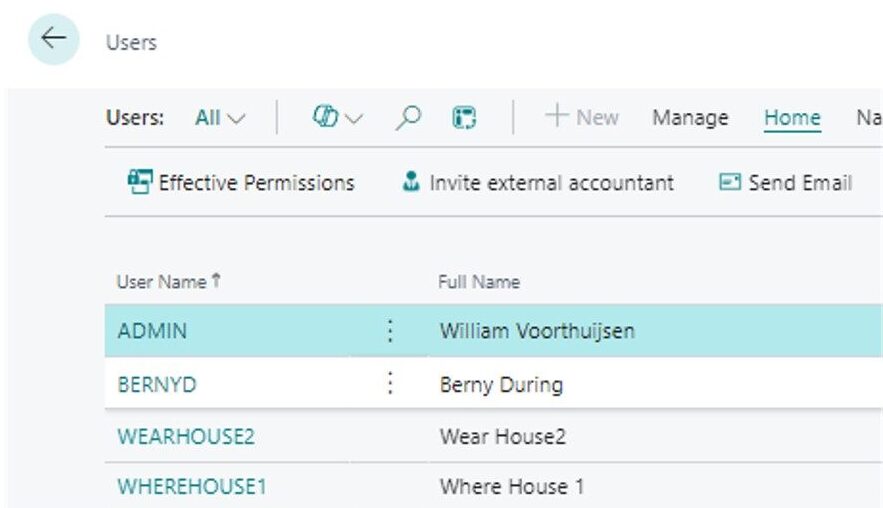
Image 12: The users are brought across from the Security Group as normal users in Business Central, where they can be assigned permissions like any other user:
Q: If the Device Users work like Concurrent Users, won’t users in the USA Warehouse “steal” licenses from users in the NL Warehouse?
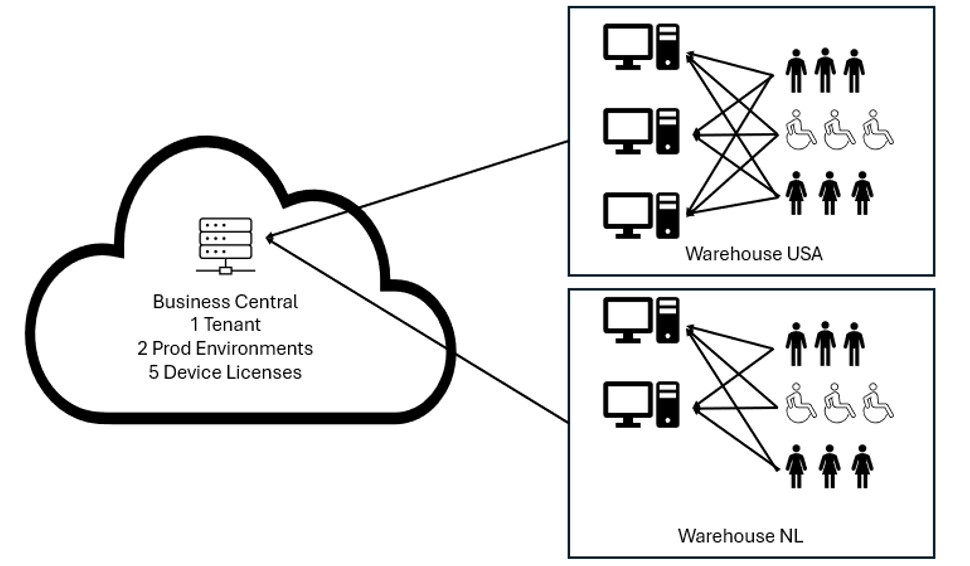
A: This could happen yes. If users in the USA log onto 4 computers, then there is only 1 license left for the users in the NL to use. However, you should have 1 device license per device used for users to log on, if there are 4 computers in the USA Warehouse, you should have purchased 4 Device Licenses, as every device that is used for the Device Users to log on, should have a license. If every device is licensed, then you should never have a problem where you run out of licenses.
Q: What if a Device User goes out of the warehouse, and logs onto Business Central on someone else’s computer in the office?
A: Then it will consume a Device License for that device. If a user is a worker in the warehouse, and logs onto BC using the Device in the Warehouse, and he logs onto Computers in the office, he should have a normal Essential or Premium license, and not be licensed as a Device User. This way, when he logs onto a normal computer, he is using his normal user license, and not consuming another Device License.
Q: What if a “normal” user logs onto the Warehouse Computer?
A: If a user with a normal Essential or Premium license log onto the Warehouse Computer, they will not consume one of the Device Licenses, as they are just logging on with a normal user account, and not a Device User.
Q: Why is there a Device table in Business Central? Don’t I have to create my devices in this table?
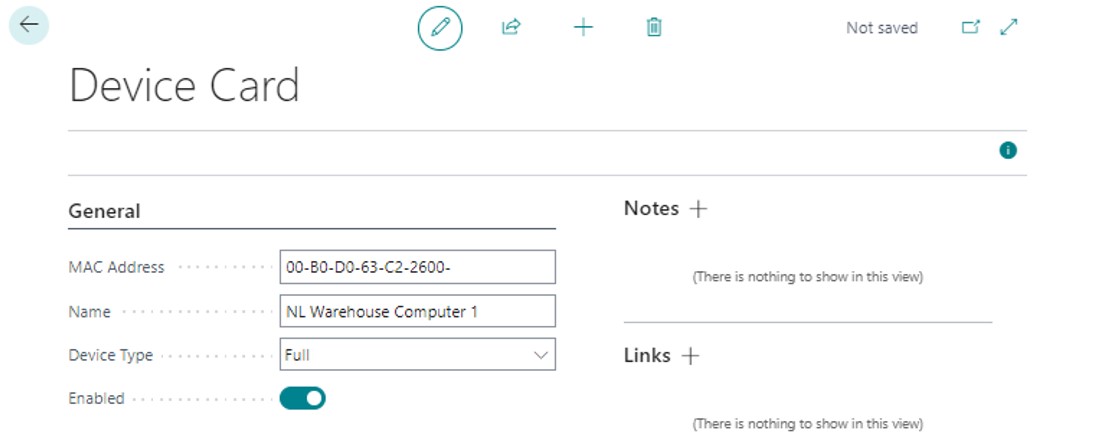
A: You are correct, in Business Central, there is a Devices table, where you can create your devices that use Device licenses. However, filling in the list of computers in this table, is done just for compliance purposes. It has nothing to do with the license, how they work, or is required. If you use 5 devices, like in the example above, you need to go to the Devices table, and create an entry in the Devices for every device you are going to use to log onto Business Central, this is purely to keep track for yourself, and if you get a license audit, to say which devices the device licenses are for. This does not affect anything in Business Central, or how the licenses work.

Q: Why should I not run Jobs as a Device User?
A: In the past it was not possible to run Jobs as a Device User, but since that has changed, it means that if I am a Device User, and I create a Job to run in the Job scheduler, that Job will run in the background, log me in, and consume one of my Device Licenses. Now, looking at our example scenario above, I have 5 device licenses, if a job kicks off, and is running in the background, it means that only 4 users can log onto devices, and when the 5th device wants to log on, there is no longer a device license for that user to log on with, as the 5th license is being used by a job running in the background.
Q: Does it work the same for Business Central On-Prem?
A: No, for Business Central on-premises, it is a whole different story, there you used to create one username, and password for the Device, and then all users in the Warehouse would use the same username and password to log onto the one device in the Warehouse. This meant that it was not possible to trace what user did what in the system, as all activity was logged under one username and password. With the new way designed for Business Central SAAS, it is possible for every user to log on using his own username and password, and we can trace who did what in the system. Which is a much better way of dealing with Device licenses, and Device users.
Q: Could I theoretically use Device Licenses to do things outside of the stipulated scenarios?
A: Yes, theoretically, this is off course possible having read the rest of my story above.
Q: Should I use Device Licenses to do things outside of the stipulated scenarios?
A: No.
Now if you have any further questions, please feel free to reach out to me directly, and I will make sure to answer you and add the question to the Q&A section.
Geen berichten gevonden!
News
For years we have worked alongside you as three companies with one shared purpose: helping Microsoft Dynamics partners grow.
Discover new Companial ↗