News
Companial, Ciellos and Simplanova go further as one.
For years we have worked alongside you as three companies with one shared purpose: helping Microsoft Dynamics partners grow.
Discover new CompanialFriday, February 24, 2023
Reading time: 7 minutes
In recent years, the development and Application Lifecycle Management (ALM) experience for Microsoft Dynamics 365 Finance & Supply Chain Management (also known as Finance & Operations) has vastly evolved. While Azure DevOps and VSTS are popular options, GIT source control is an even better choice. Although GIT source control is not commonly used, we find it is superior to the other options in certain areas, such as code sharing and storage for multiple developers.
In this blog series, we’ll share how to use GIT with Dynamics 365 Finance & Supply Chain Management, starting with the basics and diving deeper into the main benefits. In addition, we’ll share pro tips on how to make ALM easy for Dynamics 365 Finance & Supply Chain Management solutions with GIT.
There are a few common misconceptions about GIT for Dynamics 365 to reveal:
Despite these misconceptions about GIT for Dynamics 365, it is a powerful tool when properly configured and utilized. I’m here to prove it to you.
Let’s discuss what makes GIT better than VSTS.
First, you usually get easier merging. The key to easier merging is cherry-picking. This is due to the principles of how its source control works.
Second, GIT provides a clear branching strategy to easily maintain feature, master and release branches, and simply switch between them locally. Last, GIT is receiving significant investment from Microsoft.VSTS is considered a complete feature, so Microsoft has now shifted its attention and funds to GIT.
Before getting into the set-up process, let’s have a quick look at the prerequisites needed to get started with GIT for Dynamics 365 Finance & Supply Chain Management:
Visual Studio Configuration
Configuring Visual Studio and your local machine is quite easy. You need to create a local repository folder (i.e C:\DevOps) and map GIT local repository to it. You should not map GIT to the PackagesLocalDirectory as it would make switching branches cumbersome.
To map the repository, you first need to create the folder where the repository will live and then when you have the folder ready, you just open Visual Studio, select that you want to connect to the GIT repository, and map it to the local folder. In that way, the code will be cloned locally.
Pro tips:
Mega pro tip: use PowerShell script to create and remove symbolic links to make switching branches easy.
gitignore Configuration
Properly configuring .gitignore can help maintain the cleanliness and organization of a GIT repository. When setting up .gitignore, it’s important to include files and directories that are specific to the local environment, such as:
.gitignore Hacks
Standard .gitignore logic does not work as expected – that’s what we have learned the hard way. We put together a blog post where we explain how to make .gitignore work for Dynamics 365.
There are few principles to follow in order to make .gitignore work:
As you have GIT configured on your local machine, you can start building code and it will be detected automatically. You don’t need to add something to source control like you do in VSTS style source control.
Let’s say that you start coding, and everybody is working on the master branch. There is no immediate impact on the project; however, as the project gets bigger, it becomes inconvenient for everyone to work on a single branch. Thankfully, there are some good branching strategies that are available and are easy to implement with GIT.
Here are some recommendations for your branching strategy:
Recommended Strategy – GitFlow
Over the years we have found that GitFlow strategy works best for Dynamics 365 projects. This strategy basically consists of a few branches: master, feature, and release.
Benefits of GitFlow:
But how can you implement this strategy and use those branches? Let’s take a look at each branch separately:
1. Master Branch
The master branch contains all the code that is ready for testing, but is generally not yet fully tested. It is deployed to an integration testing environment for unit testing. The master branch has an ongoing lifecycle as it contains all code and is constantly growing. It’s important to highlight that all merges into it should be done using pull requests.
2. Feature Branches
Feature branches are dedicated to every feature that the developer is working on. They always start as a copy of the master branch and then modifications are added on top. Once complete, these feature branches should be merged into the master and can be deleted All the necessary code should now be in the master branch.
You should use pull requests (PR) to merge into the main branch to enable:
3. Release Branches
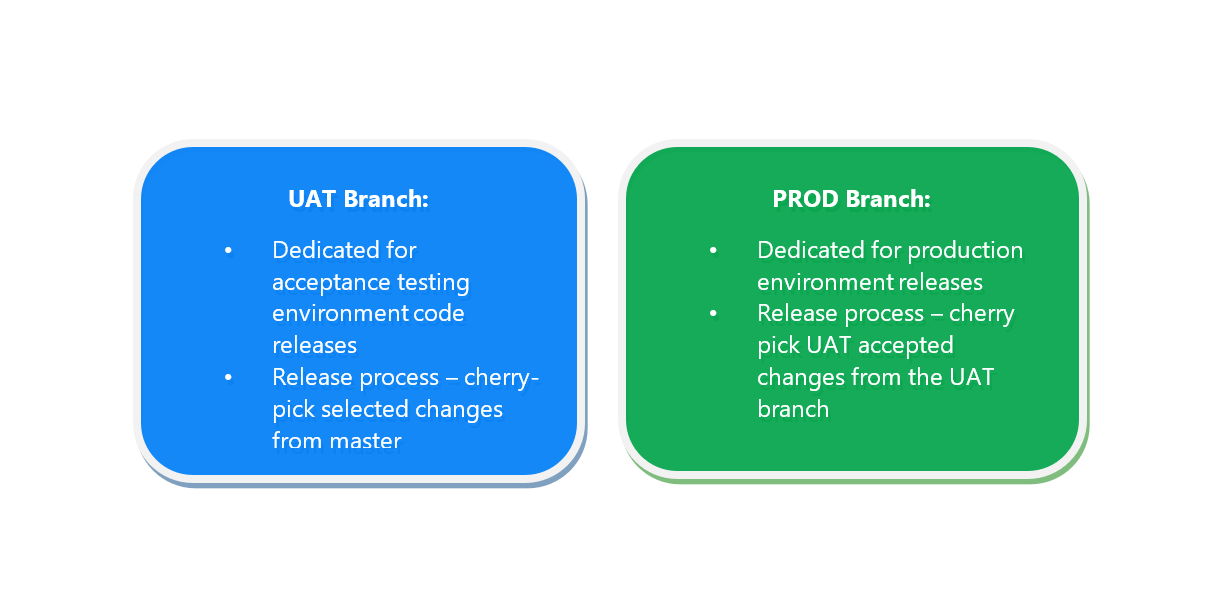
We have dedicated branches for every environment. Usually, it’s User Acceptance Testing (UAT) for user acceptance and PROD for the production environment. There can be two strategies:
This picture describes the purpose of commonly used released branches the best:
In this first installment of our blog series, we briefly described GIT basics and initial configuration for Dynamics 365 Finance & Supply Chain Management to help you get started with GIT.
Read part two of this blog series on GIT with Dynamics 365 Finance & Supply Chain Management where we focus on best practices utilizing GIT and related tools for Dynamics 365 Finance & Supply Chain Management application lifecycle management (ALM).
Still have questions? Don’t hesitate to contact us via service@companial.com
No posts found!
News
For years we have worked alongside you as three companies with one shared purpose: helping Microsoft Dynamics partners grow.
Discover new Companial ↗